
How to Use Kimi: A Step-by-Step Guide to Moonshot AI’s Chatbot
To use Kimi, open kimi moonshot ai‘s official chatbot at kimi.com (or kimi.moonshot.cn), start a new chat, and type your question — no setup beyond an account is required. Kimi is Moonshot AI’s assistant for writing, research, coding and document analysis, and according to the Wikipedia entry on Kimi, it is available on the web and as iOS/Android apps.
This is an unofficial site, not affiliated with Moonshot AI. For the official product visit kimi.com.
Where to Access Kimi
Kimi’s official web app lives at kimi.com, with a mirror at kimi.moonshot.cn for users in China. The company behind it, Moonshot AI, also runs its corporate site at moonshot.ai, where it publishes research and product announcements. By late 2024, Kimi had reportedly grown to more than 36 million monthly active users, making kimi.com the most direct and reliable place to start.
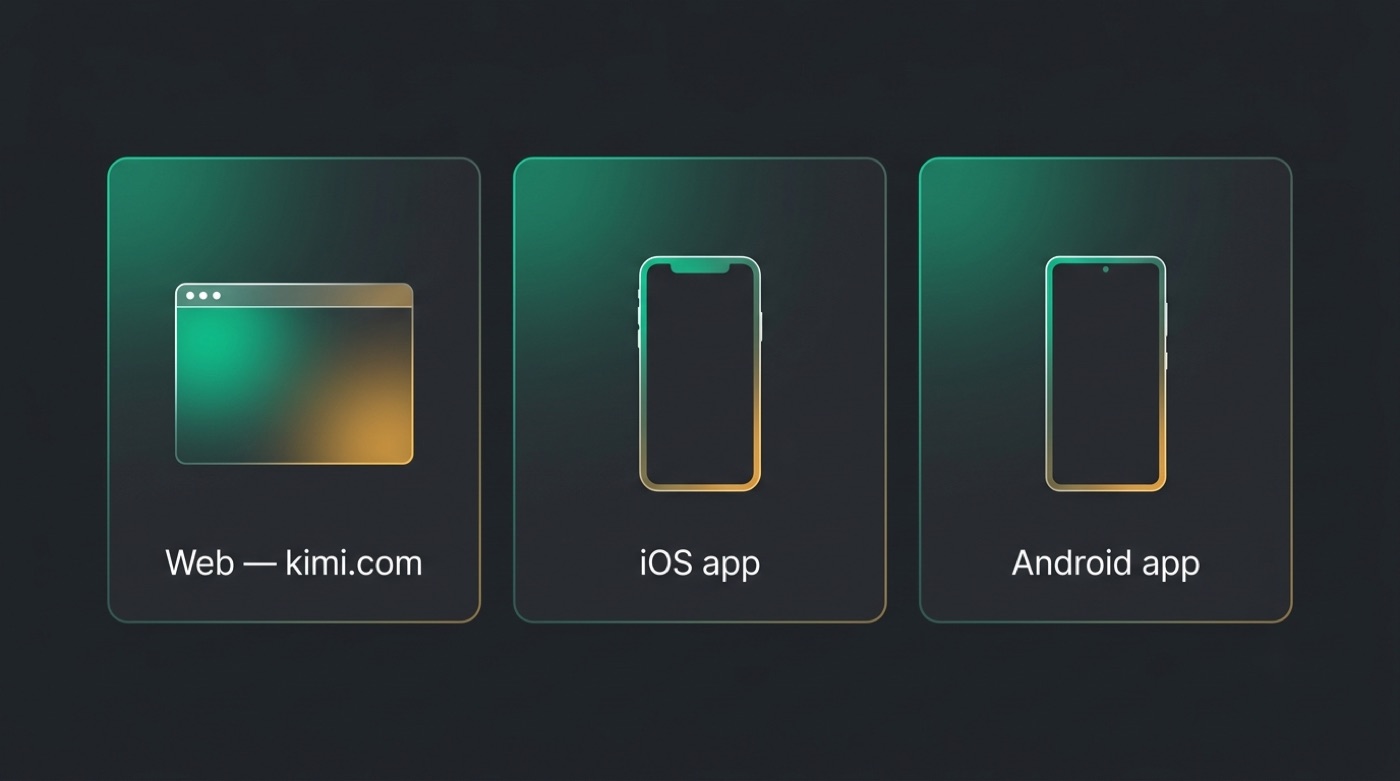
Beyond the browser, Moonshot AI publishes official mobile apps so you’re not tied to a desktop session. Here are the confirmed access points:
- Web app — kimi.com (primary) or kimi.moonshot.cn (mirror)
- iOS app — official Kimi app in the Apple App Store
- Android app — official Kimi app in the Google Play Store
Whichever entry point you choose, your account and chat history carry over, since everything runs against the same backend. Sticking to these official channels also avoids third-party clones that imitate Kimi’s interface without offering the same underlying model.
Step-by-Step: Your First Kimi Chat
Getting started takes only a couple of minutes, and the flow is close to what you’d expect from any modern AI chat product. Screens and buttons may shift as Moonshot AI updates the interface, so treat the steps below as the general shape rather than pixel-exact instructions.
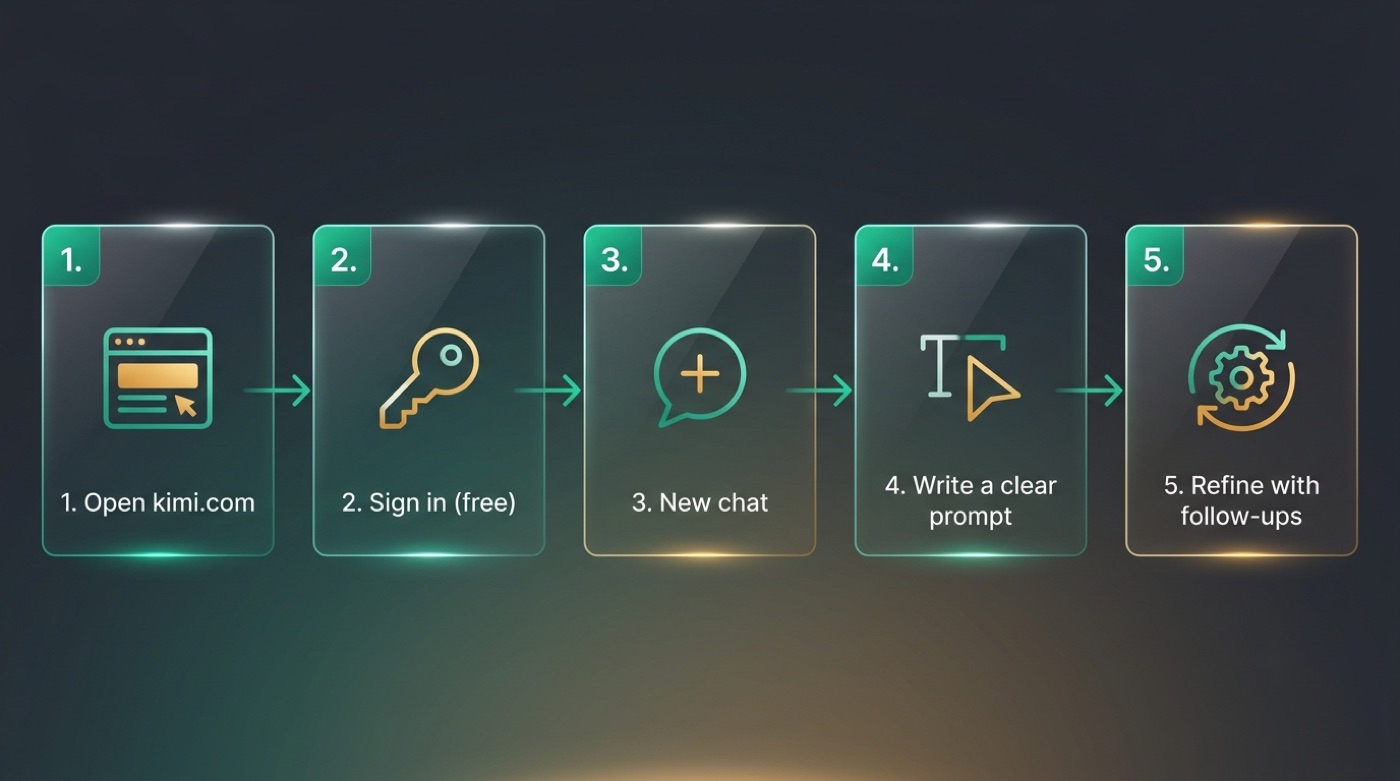
- Open kimi.com in your browser (or launch the iOS/Android app).
- Sign in, or create a free account if it’s your first visit.
- Start a new chat from the main screen.
- Write a clear, specific prompt describing what you want.
- Read the response, then refine it with follow-up questions.
Because Kimi keeps track of the conversation, you don’t need to repeat context in every message — it remembers what was said earlier in the same thread. That multi-turn memory is what makes kimi ai chat genuinely useful for back-and-forth work like editing a draft or debugging code, rather than treating each question as a one-off.
Writing a good first prompt
The single biggest lever for better answers is specificity. Instead of asking a vague question, describe the task, the audience, and the format you want the answer in — a bullet list, a table, a short paragraph, or code.
Giving Kimi relevant background also pays off. If you’re asking it to review a contract clause or summarize a report, paste the actual text or upload the file rather than describing it from memory. And treat the first reply as a draft: ask for a tighter version, a different tone, or missing details, and iterate from there. As with any AI assistant, cross-check important facts, dates, and figures against a primary source before relying on them.
Uploading Documents and Using Long Context
Document handling is one of Kimi’s standout features. You can upload a file directly into a chat and ask questions about its contents, rather than pasting the text manually. This is backed by long-context support — at launch Kimi could handle roughly 200,000 Chinese characters in a single conversation, later extended further, so lengthy reports and multi-page documents fit without being chopped into pieces.
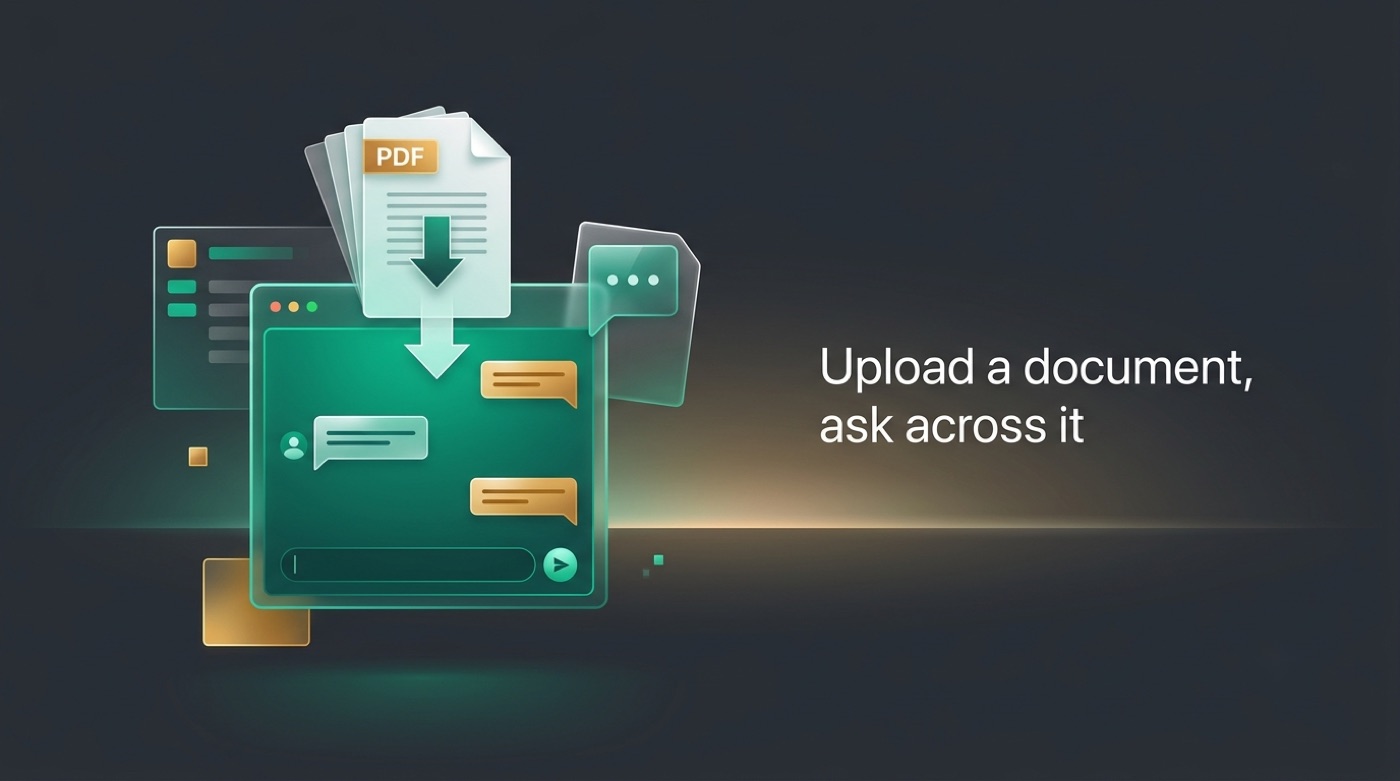
In practice, that means you can drop in a PDF, a spreadsheet export, or a long research report and work with the whole thing at once. Typical tasks include:
- Summarizing a long report into key takeaways
- Extracting specific figures, dates, or clauses
- Comparing sections against each other
- Answering follow-up questions that reference earlier parts of the document
Because the entire file stays in context, you can ask a question about page one and another about page fifty in the same thread, without re-uploading or re-explaining anything.
Free vs Paid: What You Get
Kimi offers free access with general rate limits, so you can try the chatbot and use it for everyday tasks without paying anything. For heavier or more frequent use, Moonshot AI also offers paid subscription tiers. Exact tier names, prices, and usage caps change over time, so treat any numbers you see elsewhere as a starting point and verify current plans directly on kimi.com before deciding what you need.
| Aspect | Free | Paid tiers |
|---|---|---|
| Cost | No cost | Subscription |
| Usage | General rate limits | Higher usage limits |
| Best for | Trying Kimi, light everyday use | Heavy or professional use |
Exact plans, prices, and limits change — always check kimi.com for the current offering.
Once you’ve settled on free vs paid, the next practical question is simply which door to walk through. Kimi is reachable from several platforms, and picking the right one mostly comes down to whether you’re chatting casually, working on a phone, or wiring Kimi into your own software. The table below lines up those options side by side.
| Platform | How to get it | Best for |
|---|---|---|
| Web (kimi.com) | Open in any browser, sign in | Full-featured use on desktop |
| iOS app | Download from the App Store | Chatting on the go |
| Android app | Download from Google Play | Chatting on the go |
| Moonshot API | Sign up on the developer platform | Integrating Kimi into your own app |
Using Kimi for Developers (API and Open Weights)
If you’re building your own product rather than chatting manually, Moonshot AI exposes a developer route too. The Moonshot API platform lets you call Kimi’s models programmatically and integrate them into your own applications, similar to how other AI labs expose their models to developers.
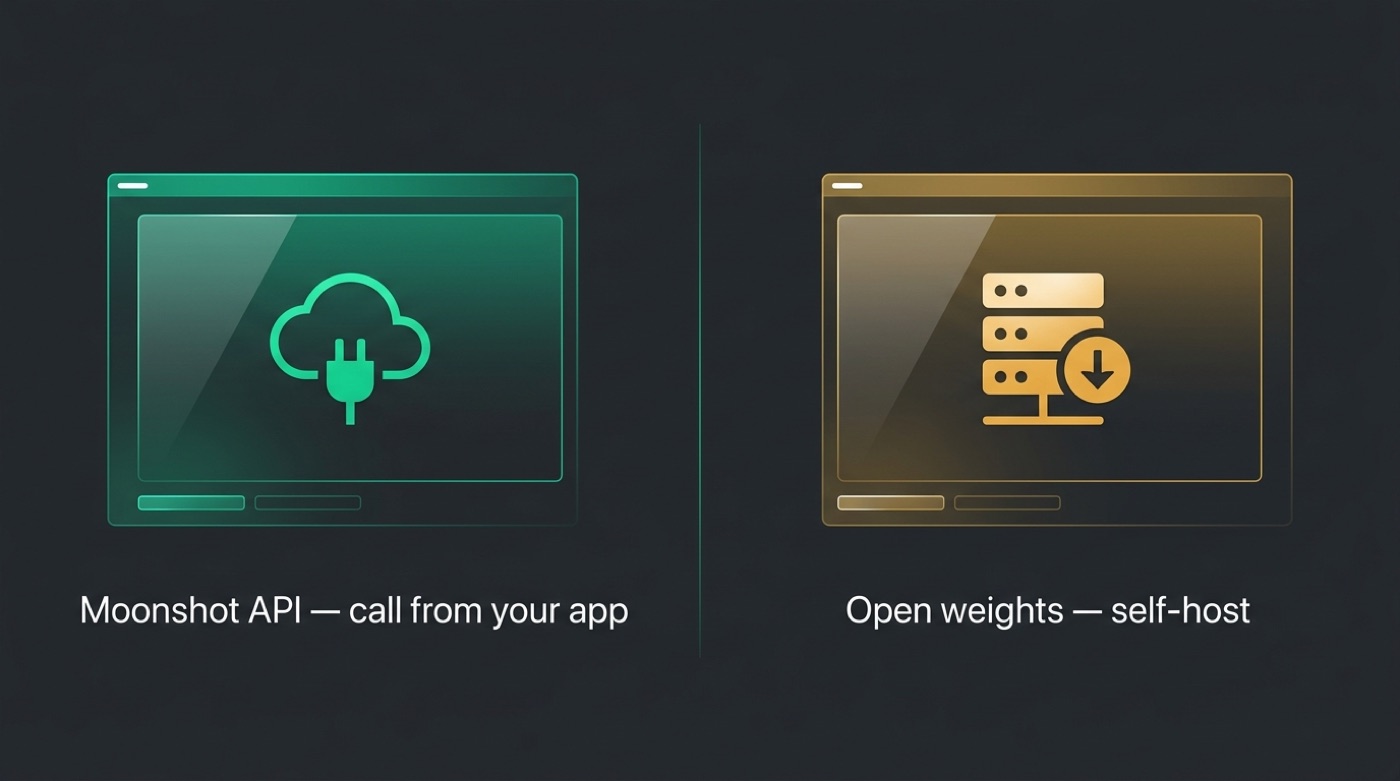
For teams that want to self-host, Moonshot AI has also released open weights for parts of the Kimi K2 model family, published on Hugging Face and mirrored elsewhere for download. Two practical routes for developers:
- Moonshot API — call Kimi’s models from your own app without managing infrastructure
- Open weights (Hugging Face / GitHub) — download the models to self-host and fine-tune
Self-hosting is the heavier option: these are large models, so running them yourself requires serious GPU hardware and the engineering effort to serve them reliably, which is why most teams start with the hosted API instead.
Tips to Get Better Results
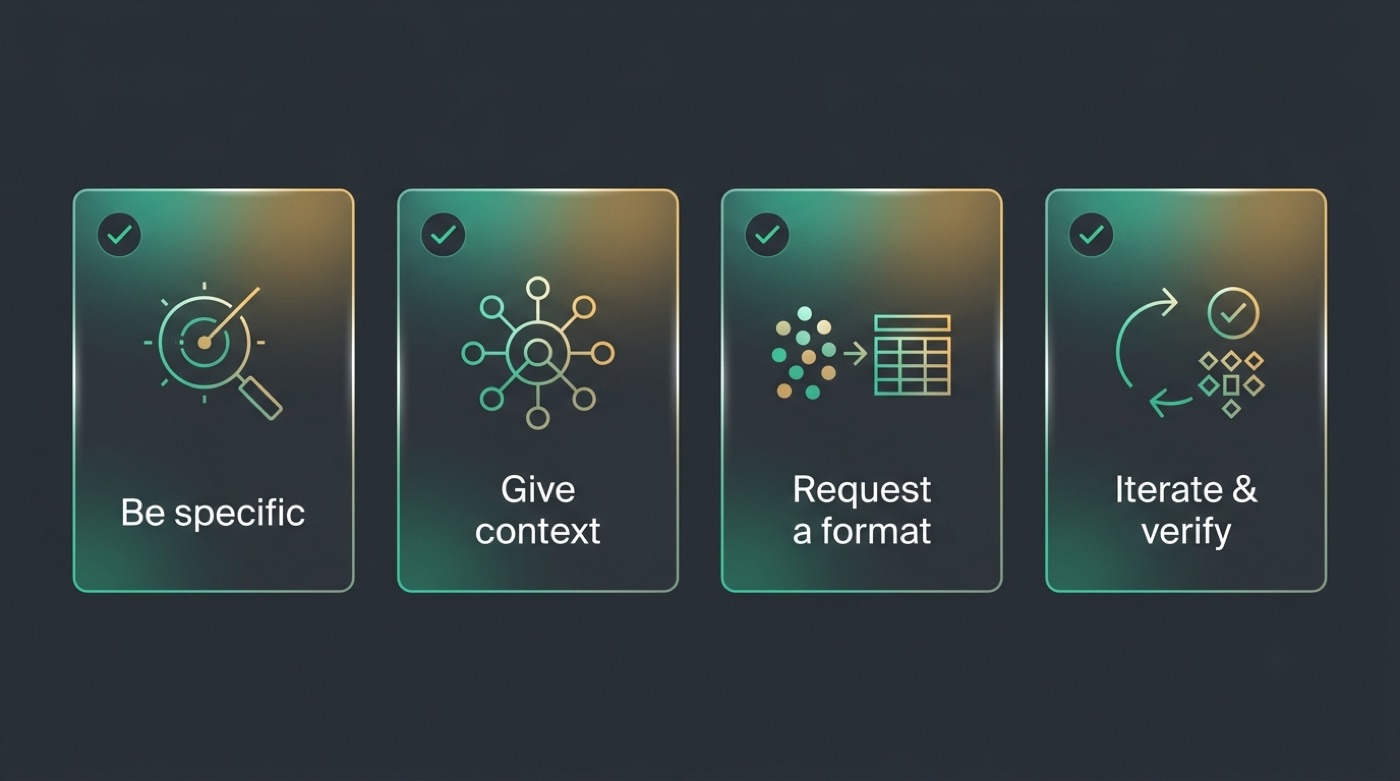
A few habits consistently improve what you get back from Kimi, and they apply whether you’re chatting casually or building a workflow around it. Be specific about the task, give relevant context up front, request a particular output format, and iterate rather than expecting a perfect answer on the first try.
Use the long-context window instead of chunking. Rather than breaking a large document into pieces and asking about each one separately, paste or upload the full material in one go — Kimi’s context window is built for exactly this, and answers stay more consistent when the model can see everything at once.
Wikipedia describes Kimi’s underlying position clearly:
An artificial intelligence (AI) chatbot and series of large language models developed by Chinese company Moonshot AI.
Wikipedia — Kimi (chatbot)
If you’re ready to try kimi ai for the first time, start small: one clear prompt, one specific task. For the official product, current features, and up-to-date pricing, kimi.com remains the authoritative source.